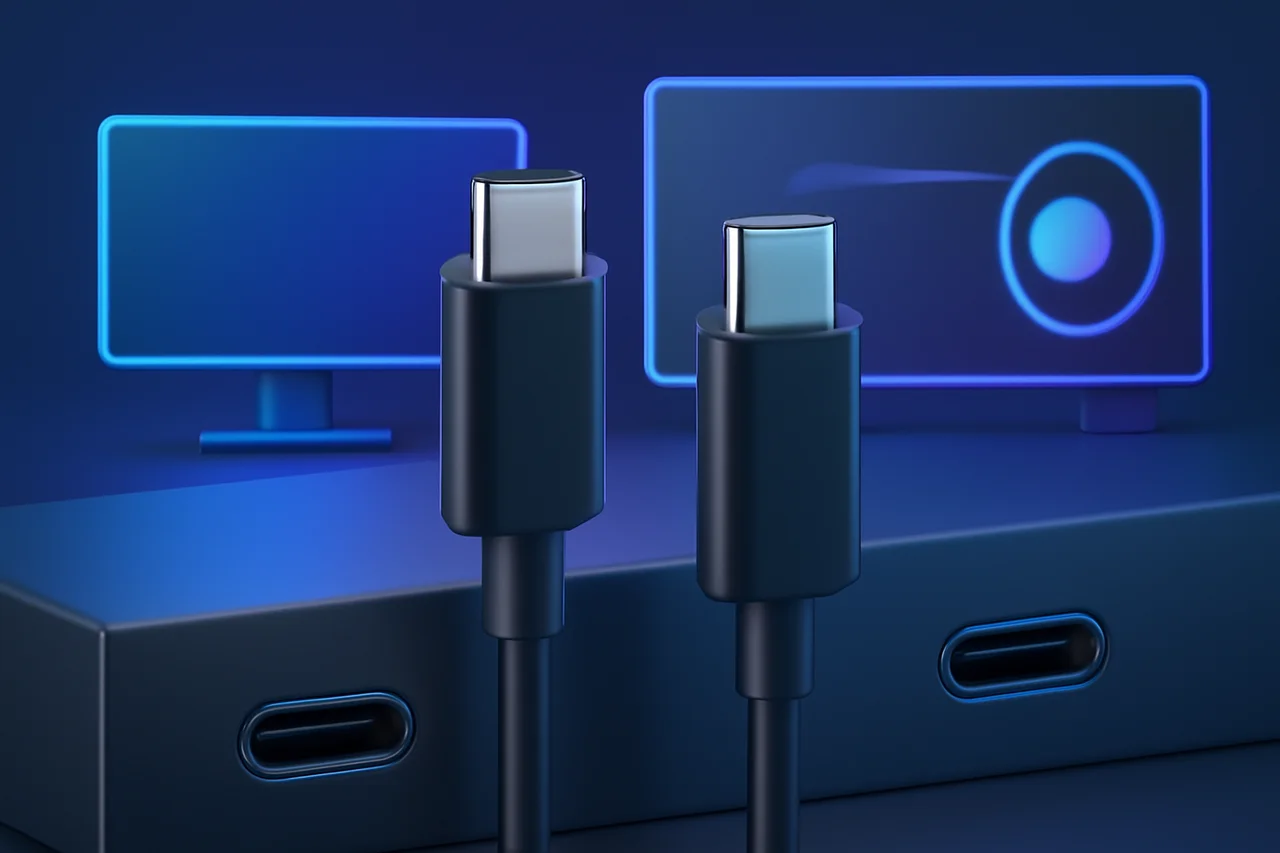
USB-C ports have become a standard feature in modern devices, offering a versatile connection for power, data transfer, and video output. However, not all USB-C ports are created equal, and understanding their capabilities is crucial for users who want to leverage their full potential, especially when it comes to video functionalities. This guide aims to clarify how to determine if your USB-C port supports video output and what to look for when making your connections.
Understanding USB-C Specifications
USB-C is a universal connector that can handle various tasks, but the specific capabilities depend on the underlying technology and the specifications of the port. The primary standards associated with USB-C that relate to video output are USB 3.1, USB 3.2, and Thunderbolt 3. Each of these standards has different capabilities regarding data transfer rates and video output.
USB 3.1, for instance, can support video output through the DisplayPort Alt Mode, allowing for high-definition video transmission. USB 3.2 further enhances this by offering increased data transfer rates, which can also benefit video streaming and display capabilities. Thunderbolt 3, on the other hand, takes it a step further by enabling dual 4K display support and faster data transfer speeds, making it a favorite among professionals who require high-performance connections.
Checking Your Device's Specifications
The first step in determining if your USB-C port supports video is to check the device's specifications. This information is usually available in the user manual or on the manufacturer’s website. Look for mentions of DisplayPort or HDMI Alt Mode, as these indicate that the port can handle video output. If your device supports Thunderbolt 3, it will also support video output, as this technology is built on the USB-C standard.
Additionally, some manufacturers provide detailed specifications that include the maximum resolution and refresh rate supported by the USB-C port. For example, a port that supports 4K video output will typically state this explicitly, allowing users to understand the capabilities of their device better.
Identifying Visual Indicators
Sometimes, USB-C ports may have visual indicators that can help you identify their capabilities. Some manufacturers include symbols next to the port. For example, a lightning bolt icon can signify Thunderbolt support, while a small monitor icon may indicate video output capabilities. Familiarizing yourself with these symbols can save you time and confusion when connecting devices.
Moreover, some devices may also color-code their ports. For instance, a blue USB-C port might indicate higher capabilities compared to a standard USB-C port. Knowing these visual cues can assist in quickly identifying which ports to use for video output without needing to delve into technical specifications.
Using Adapter and Cables Wisely
If your USB-C port supports video output, you’ll need the right cables and adapters to connect to external displays. Not all USB-C cables are created equal; some are designed solely for data transfer, while others support video and power delivery. When purchasing cables, look for those labeled as "USB-C to HDMI" or "USB-C to DisplayPort" that explicitly mention video support to ensure compatibility.
It is also important to consider the quality of the cables and adapters you choose. Low-quality cables may not support the full bandwidth required for higher resolutions or refresh rates, leading to a subpar viewing experience. Investing in certified cables can help ensure that you achieve the best possible performance from your USB-C port.
Testing Your USB-C Port
If you're still unsure whether your USB-C port can handle video, you can perform a simple test. Connect your device to an external monitor or TV using a compatible USB-C to HDMI or USB-C to DisplayPort adapter. If the display recognizes your device and shows the screen, then your port supports video output. If not, it may only be capable of data transfer and charging.
In addition to testing with a monitor, you can also check for software settings on your device that may indicate video output capabilities. Some operating systems provide detailed information about connected devices, allowing you to see if your USB-C port is actively transmitting video signals.
Conclusion: Making Informed Choices
Understanding the capabilities of your USB-C ports is essential for maximizing the potential of your devices. By checking specifications, identifying visual indicators, using appropriate cables, and testing connections, you can determine if your USB-C port supports video output. This knowledge empowers you to make informed decisions when setting up your devices, ensuring you can take full advantage of the versatility that USB-C has to offer.
As technology continues to evolve, USB-C is likely to remain a critical component in the connectivity landscape. Being aware of the capabilities of your USB-C ports not only enhances your current setup but also prepares you for future advancements in device connectivity and multimedia experiences.
Key Highlights
- USB-C ports vary in capabilities; not all support video output.
- Check device specifications for DisplayPort or HDMI Alt Mode support.
- Visual indicators like icons can help identify video output capabilities.
- Use the right cables and adapters for video connections.
- Perform a test by connecting to an external display to confirm capabilities.
- Understanding USB-C specifications is key to making informed choices.
Expert Analysis
Technical Analysis
USB-C technology is a universal connector that supports power delivery, data transfer, and video output, but its capabilities vary based on the underlying specifications. The main standards associated with USB-C that are relevant for video output include USB 3.1, USB 3.2, and Thunderbolt 3. USB 3.1 can support video output through DisplayPort Alt Mode, while USB 3.2 enhances data transfer rates, benefiting video streaming. Thunderbolt 3 offers even greater capabilities, such as dual 4K display support and faster data transfer speeds, making it ideal for professional use.
The differentiation among these standards lies in their performance and versatility. USB 3.1 provides basic video output capabilities, whereas USB 3.2 and Thunderbolt 3 significantly improve upon this with higher data rates and support for advanced video resolutions. However, limitations exist, such as the need for compatible cables and adapters, as not all USB-C cables support video output. Additionally, users must be aware of their device's specifications to fully leverage the potential of their USB-C ports, as not all ports are created equal.
Advantages
- Versatile connectivity for power, data, and video output.
- Supports high-definition video transmission through DisplayPort Alt Mode.
- Thunderbolt 3 enables dual 4K display support, appealing to professionals.
- Visual indicators and color-coding help users quickly identify port capabilities.
Disadvantages
- Not all USB-C ports support video output, leading to potential confusion.
- Low-quality cables may not support higher resolutions or refresh rates.
Real-World Use Cases
- Connecting laptops to external monitors for enhanced productivity.
- Using USB-C ports on tablets to output video to projectors for presentations.
- Enabling high-definition video streaming from smartphones to TVs using USB-C adapters.
- Utilizing Thunderbolt 3 ports for multi-display setups in creative work environments.
Business Impact
The widespread adoption of USB-C technology is reshaping the connectivity landscape, as it consolidates multiple functions into a single port. This shift presents opportunities for manufacturers to innovate around USB-C accessories and peripherals, potentially increasing revenue streams. Competitors that fail to adopt USB-C risk falling behind in a market that increasingly values versatility and efficiency in device connectivity.
User Impact
Ordinary users benefit from the convenience and versatility of USB-C ports, as they can simplify their device connections and reduce the number of cables needed. However, users may face challenges if they are unaware of their device's specific USB-C capabilities, which could lead to frustration when attempting to connect to external displays. Overall, understanding USB-C can enhance user experience and encourage adoption of modern devices.
Security & Privacy
Security and privacy analysis not applicable.
Future Outlook
As technology evolves, USB-C is expected to become even more integral in device connectivity, with potential advancements in data transfer speeds and video output capabilities. Future developments may include enhanced support for higher resolutions and refresh rates, as well as broader adoption across various device categories, further solidifying USB-C as the standard for modern connectivity.
Expert Summary
Understanding the capabilities of USB-C ports is crucial for maximizing device potential, especially as USB-C becomes the standard for connectivity. Users, manufacturers, and businesses should pay attention to these developments, as they not only affect current setups but also future advancements in technology. Overall, this knowledge empowers users to make informed decisions and enhances their multimedia experiences.
Originally reported by Engadget - Technology News & Expert Reviews.