Windows 11 24H2 Support Has Ended: How to Upgrade to 26H2
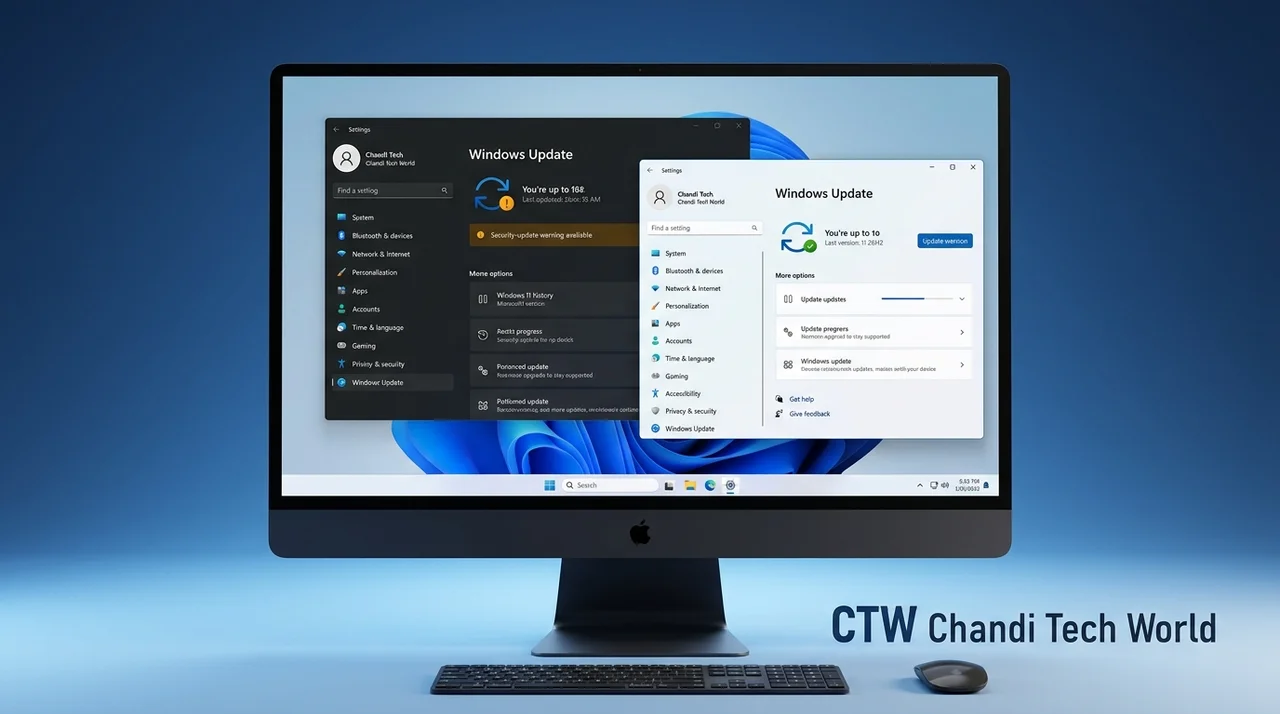
Windows 11 version 24H2 has reached the end of support for Home and Pro editions. As of October 13, 2026, these PCs no longer receive regular monthly security updates for that release. The computer will continue to work, but missing future security fixes can leave it more exposed to newly discovered vulnerabilities.
The recommended next step is to check your Windows version and move to a supported release if an upgrade is available for your device. Windows 11 version 26H2 began its general rollout on September 29, 2026, and Microsoft is delivering it in phases to eligible PCs.
This guide explains what the deadline means, how to check your version, and how to look for the upgrade safely.
What Happened on October 13, 2026?
Microsoft provides each Windows 11 release with a defined support period. For Windows 11 Home and Pro, version 24H2 reached the end of its update lifecycle on October 13, 2026.
That does not mean your PC will shut down, your files will disappear, or installed applications will stop working. Instead, the unsupported release no longer receives its regular monthly security and quality updates. Over time, that can leave known or newly discovered security weaknesses without the fixes provided to supported versions.
The deadline applies specifically to the Home and Pro editions. Other editions, including Enterprise and Education, have different servicing timelines.
For the official dates, see Microsoft's Windows 11 release information.
What Is Windows 11 Version 26H2?
Windows 11 version 26H2 is Microsoft's 2026 feature update. It became generally available on September 29, 2026, for eligible devices, with a phased rollout that will expand over time.
Microsoft says versions 24H2, 25H2, and 26H2 share a common core operating system. For eligible devices, the move to 26H2 can use a small enablement package rather than a complete Windows reinstall. The update still requires a restart, and availability depends on device eligibility and Microsoft's rollout controls.
This can make the upgrade relatively quick, but it is not a guarantee that every PC will see the update immediately.
Read Microsoft's official explanation of the Windows 11 26H2 enablement package.
Why Upgrading Matters More Than New Features
The main reason to move away from 24H2 is continued security support, not a long list of new features.
Microsoft's published lifecycle dates for Home and Pro are:
Windows 11 24H2: Support ended October 13, 2026.
Windows 11 25H2: Updates are scheduled to end October 12, 2027.
Windows 11 26H2: Updates are scheduled to end October 10, 2028.
These dates apply to the Home and Pro editions. Enterprise and Education editions follow different timelines.
If your PC is still on 24H2 Home or Pro, check Windows Update for an available supported release. For more practical security guidance, visit our cybersecurity coverage.
What Changes in Windows 11 26H2?
Windows 11 26H2 includes features and improvements delivered through Microsoft's Windows servicing process. Some features may already have appeared on 24H2 or 25H2 devices through earlier updates, so not every change is exclusive to 26H2.
One documented improvement is the ability to enable or disable Smart App Control without reinstalling Windows. Microsoft also documents a point-in-time restore feature intended to help return a PC to an earlier working state. Feature availability and default settings can vary by edition, device configuration, and management status.
For the most reliable details, consult Microsoft's Windows 11 26H2 release information and official update documentation before relying on a specific feature.
How to Check Which Windows Version You Have
You can check your Windows version in a few steps:
Press Windows key + R on your keyboard.
Type
winverinto the Run box.Press Enter.
Read the Windows version displayed in the About Windows window.
If the window says Version 24H2, check whether your edition is Home or Pro and look for a supported upgrade. If it says 25H2, its Home and Pro support is scheduled to continue until October 2027. If it says 26H2, you are already running the 2026 release.
How to Upgrade to Windows 11 26H2
Before starting, save your work and back up important files. Although feature updates are designed to preserve personal files and applications, a backup helps protect against unexpected problems.
Open Start and select Settings.
Select Windows Update.
Click Check for updates.
If Windows 11 version 26H2 is offered for your PC, select Download and install.
Follow the on-screen instructions and restart when prompted.
After the update, run
winveragain to confirm your Windows version.
Microsoft is using a phased rollout, so 26H2 may not appear on every eligible PC at the same time. If the update is not offered, check Windows Update again later and review Microsoft's release-health page for availability information or a compatibility safeguard.
You can also check Microsoft's official Windows 11 26H2 availability and known-issues page.
Avoid downloading installation files from unfamiliar websites or using unofficial methods to bypass compatibility safeguards.
What If You Use a Work or School PC?
If your computer is managed by an employer or school, your IT administrator may control when feature updates are installed. Contact the administrator rather than trying to force the update or bypass organizational settings.
What If Windows Update Does Not Offer 26H2?
First, make sure your PC has an internet connection and that any pending updates have been installed. Check available storage and restart the computer if Windows requests it.
If 26H2 still does not appear, the rollout may not have reached your device, or Microsoft may have placed a compatibility safeguard on it. A safeguard hold can temporarily prevent an update when a known issue may affect a particular device or configuration.
Do not assume that a missing update means you need a new PC. Check Microsoft's current release-health information and the device's compatibility status before making hardware decisions.
In the meantime, keep Windows Defender or your preferred security software, your browser, and your applications updated. These steps are useful, but they do not replace security updates for an unsupported Windows release.
Frequently Asked Questions
Is Windows 11 24H2 still usable after October 13, 2026?
Yes. The PC will continue to run, but Home and Pro editions no longer receive regular monthly updates for 24H2. Upgrading to a supported version is the recommended option.
Is Windows 11 26H2 a free update?
Microsoft provides the feature update through Windows Update to eligible Windows 11 devices. Whether and when it appears depends on device eligibility and rollout status.
Will upgrading delete my files?
An in-place feature update is designed to retain personal files, applications, and settings. However, unexpected problems can happen, so back up important files before proceeding.
Do I need a new PC for Windows 11 26H2?
Not necessarily. First, check whether your existing Windows 11 PC is eligible and whether the update is being offered. A missing update can reflect rollout timing or a compatibility safeguard rather than a need to replace the computer.
When does Windows 11 26H2 support end?
For Home and Pro editions, Microsoft's published end-of-updates date is October 10, 2028. Other editions can have different support timelines.
Bottom Line
Windows 11 24H2 Home and Pro reached the end of regular support on October 13, 2026. Your PC will not stop working, but it will no longer receive the monthly security fixes associated with that release.
Check your version with winver, open Windows Update, and install a supported release when Microsoft offers it for your device. Windows 11 26H2 is rolling out to eligible PCs, but availability is phased, so follow Microsoft's official guidance if it does not appear right away.
For more practical Windows and security guidance, explore CTW Chandi Tech World's cybersecurity coverage.